Google Shopping Guide – A tool every e-commerce website must know
Google Shopping Guide - Best Practice
Every digital manager of an e-commerce site is always looking for another channel that can bring new customers to the site and generate sales. Google Shopping should be one of the primary channels that every e-commerce website must use. In this guide, I will show how to build a Google Shopping campaign from scratch.
What does Google Shopping (Google Merchant) look like?
Google Shopping ads appear at the top of search results with an image and a price, usually in carousel format:
Google Shopping is a bit different from other Google campaigns. The Shopping campaign actually begins in the Merchant Center, where we can build our Product Feed.
What is a Product Data Feed? It is essentially a list of all the products available on the site. It is not just another list; it is a list containing many parameters for every single product, like an Excel file, which is updated automatically or manually. We will elaborate on the Feed in the next section
When opening the Merchant account, please review all settings and adjust them according to the nature of the business, and enter details in the taxes and shipping columns.
Building a Dynamic Product Catalog - Dynamic Product Feed
The parameters that must be entered for each and every product: Column A – Identifier – Internal SKU – IPN Column B – Product Name – preferably include the product function as well – Product Name Column C – Description – Description Column D – Link – Product or category page – Link Column E – Condition – Condition Column F – Price – Price Column G – Availability – Availability Column H – Image Link – Image Link ColumnI – Manufacturer SKU – MPN – Manufacturer part number Column J – Brand – Brand Column K – Product category – Google Shopping Category
* Google requires all fields to be filled.
Product Category in Google:
Search on Google “google merchant categories list filetype:xls” (or click here), the first result should download a large Excel file for you with all Google categories. It is very important to be precise with the category matching the promoted product.
Category example:
Home & Garden > Household Appliances > Climate Control Appliances > Fans > Ceiling Fans
Example of a dynamic product catalog in Google Sheets – This is what a Product Feed looks like:
How to build a high-quality dynamic catalog?
The data must be arranged in the catalog according to Google’s product catalog guidelines: Click here for Google’s explanation It is very important to provide a link to a high-quality image in the catalog, and add as many optional fields as possible to the product in order to describe it thoroughly. For example, if I have a shoe store, I would want each shoe to specify whether it is athletic, elegant, etc…
The product title is the most critical; keep it simple and clear. There are also custom fields used to organize the catalog according to the nature of the products on the site. These are essentially blank fields in which we can insert any parameters we want.
Recommended WordPress Plugin – PixelYourSite
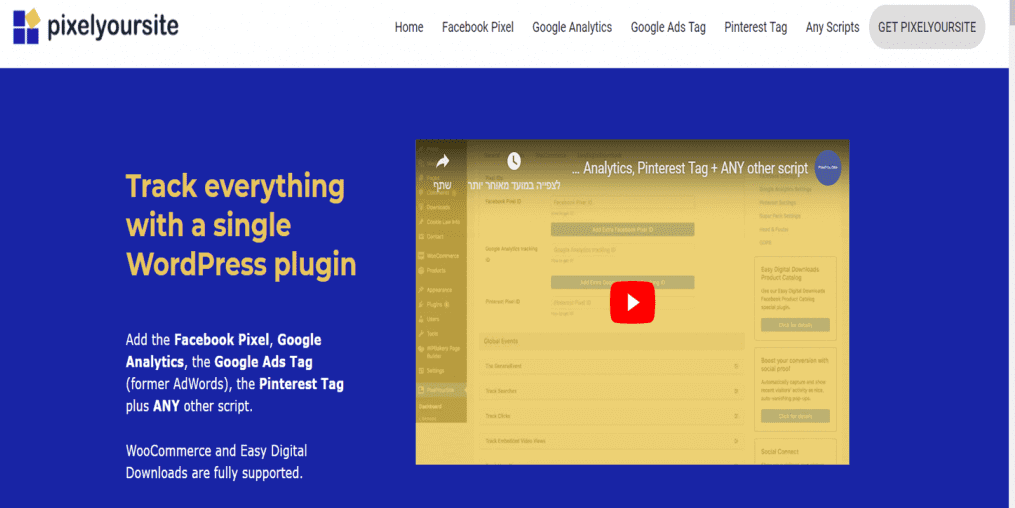
If your website is built on WordPress, there is a plugin named PixelYourSite that will implement the pixel and organize a catalog for you – highly recommended:
Google Sheets – The catalog will be connected to a Google Sheets file and updated from there. Scheduled fetch – The catalog will be hosted on your server – and you set the hours for the catalog to update. Upload – Manual upload of the catalog file. Content API – Direct connection via API to the site’s product management system.
Troubleshooting
In the Merchant Center, there is a Diagnostics page – where you can understand the errors in the catalog, the page looks like this:
What we are looking for in the catalog are disapproved products, Google allows us to download a report explaining exactly what the problem is with each product. For example, in the image on the previous slide:
Here the problem is simple: all you need to do is add the fields Google requests to the catalog, and the products will be approved without any problem.
On the Diagnostics page, we can see a lot of things about the catalog.
Creating a Google Shopping campaign in Google Ads:
• The account must be under the same email as the Merchant Center
Open a new campaign, select creating a campaign without guidance
Select a “Shopping” type campaign and the Merchant Center account
The campaign settings are like any other Google campaign: name, locations, etc.
Ad Group Configuration:
An ad group is basically a collection of products. Our recommendation is to split products by types and categories; the more separated the groups are, the easier it will be to optimize and make changes.
On this screen, we can see the campaign we built
Summary
In this guide, we learned how to build a Google Shopping campaign and what is needed to create a dynamic product catalog. ign is a must for every e-commerce site and is highly recommended to start using right away.ign is the best campaign you can build for your e-commerce site; it drives relevant, sales-oriented traffic to the products you sell. The advantages of a Google Shopping campaign are that with it, you can discover new keywords, generate ads for all products on the site automatically, and understand which products visitors are searching for more. Try the campaign, allocate a certain budget for testing, and most of the time this test is successful.
A bit about me
Yanir Cohen, 22 years old, specializes in digital campaign management across a variety of channels. Passionate about delivering results, enjoys challenging campaigns, and develops games in his spare time.