How to Do Remarketing on Facebook – The Complete Guide That Will Bring You Results
Facebook allows you to target your audience precisely across a wide range of segments. One of the most effective tools is a remarketing audience. This audience is made up of visitors who came to your site. These people already know you and your product, so the way to “sell” to them again is much easier. Moreover, this is an audience you already know and understand how it behaves, so you can tailor specific ads and copy that hit right on target.
In this article, we will learn how to do remarketing on Facebook, step by step.
What is Facebook Remarketing?
So what is Facebook remarketing? Maybe you’ve already noticed that you visited a certain website and then saw its ads everywhere? That is remarketing (or retargeting). Ad retargeting is not a new invention, but it is an excellent tool for turning visitors into customers.
The remarketing process, in short, is this: You visit a website or a specific page on a website, and the brand you visited can show you ads related to your visit elsewhere. In the case of Facebook, this means that Facebook can show you ads relevant to your web browsing behavior.
Example:
You visit a landing page
This page has a cookie that tells Facebook you visited it
The advertiser added you to a custom audience list in their Facebook ads system
And then Facebook shows you an ad while you are on Facebook
Building a Facebook Remarketing Campaign
The steps to build a remarketing campaign on Facebook are:
1. Installing the remarketing code across your entire website 2. Building audiences of visitors who were on your website 3. Building a campaign based on these audiences
Installing Remarketing Code on Your Website
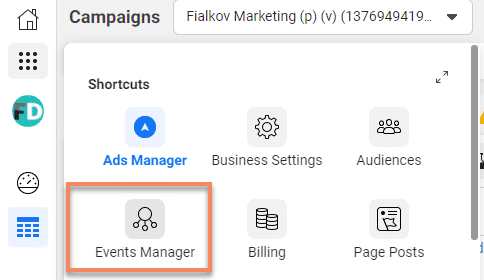
In the top menu, click Events Manager:
If there is no pixel in the account, click the Connect a Data Source button:
Choose to create tracking for Web and click Get Started:
Choose the Meta Pixel option and click Connect:
We will name our pixel, optionally add a link to the website (not mandatory), and click Continue:
Facebook will ask us whether we want to install the code manually, through a platform integration Facebook built for easy installation, or send the code to a developer.
If you chose manual installation, click Copy Code to copy the code:
We recommend installing the pixel via Google Tag Manager.
If you are unable to install it manually, you can send an email to the developer with the instructions.
On WordPress sites – you can use plugins such as Insert Headers and Footers or PixelYourSite.
If your website is on Wix, or any other platform supported by Facebook, choose Use a Partner, select the relevant platform, and follow the instructions.
If the pixel is already in use, click the Add Events button and then From a New Website, and the option to copy the pixel will appear.
After installing the pixel across the entire site (I recommend Tag Manager), we move on to the next step – building lists of visitors from your website.
How to Check If the Pixel Works?
Facebook has released a Chrome extension called Facebook Pixel Helper. Clicking on the extension allows us to see if we installed the pixel properly. If everything is correct, we will see that the pixel is green and there is a green PageView event:
Building Audiences from Your Website
1. Click Audiences in the menu:
2. Click Create Audience and then Custom Audience:
3. Select an audience from your website – Website:
Now we will decide on the conditions that will add visitors to our list. For example, here I am building a list of all site visitors in the last 30 days (the maximum is 180). You can build a list of visitors who visited a specific page, name the audience, and click Create Audience:
Now Facebook will show us the audience and how many visitors are in it:
What other options do we have? Build audiences based on visitors who viewed specific pages on the site, build audiences based on visitors who spent the most time on the site, or build audiences based on conversions you set up on the site (see our guide to implementing Facebook conversions):
You can build audiences based on visitors who visited a specific page. For example, in the image, I built an audience of everyone who was on the thank you page:
You can segment the audience based on visit frequency on the site or the device the visitor used – for this, click on Further refine by:
For example, here I built a list of everyone who visited the blog at least twice in the last month:
If we decided to build lists based on visitors who spent the most time on the site, we can choose the top 5/10/25% who spent the most time on the site, just as we can decide whether to include all visitors on the site or filter by specific pages:
How to Build a Facebook Remarketing Campaign
This is the easiest and simplest part: under the ad set, under Custom Audience, simply select the audience you built and that will be your targeting. For example, here I am targeting everyone who was on my site in the last 60 days.
Tips for using remarketing (retargeting)
* Create multiple audience combinations from your website; not all visitors are the same, not all convert equally, and you shouldn’t be willing to pay the same price for all of them.
* Create audiences based on stages of progression on the site: landing page, thank you page, etc.
* You can include certain pages and exclude others; for example, everyone who visited the landing page but did not reach the thank you page.
* I recommend building 30/90/180-day audiences and testing which works best.
* If you have a lot of traffic on the site, create as many audiences as possible – later you can build Lookalike audiences from them.
* You can also build exclusion lists of people who submitted a lead or purchased on the site – or show dedicated ads to those who already visited the site.
* You can build an audience of everyone who visited the site from a paid Google campaign if we add gclid to the URL structure.
* An excellent tool for e-commerce / lead generation websites. Use it wisely!
Inclusion and Exclusion:
This way you can create custom combinations of people who visited a specific page on the site and did not visit another page.
For example: visited the blog at least twice, but did not visit the landing page.
Example for an e-commerce site: Visited the shopping cart at least twice and did not make a purchase in the last month
Summary
Facebook remarketing is an excellent tool that delivers outstanding results for advertisers. It has a major advantage in bringing visitors back to the website, showing a different ad to someone who has already visited our site, and especially generating cheap leads and sales compared to a cold audience that does not know your brand. In my experience, Facebook remarketing yields very high click-through rates on ads compared to cold audiences, especially if you created dedicated creative for those who visited your site. This is one of the most important tools for advertising on Facebook with the lowest cost per conversion available in Facebook’s advertising system, allowing you to increase return on investment (ROI).
About the Author
Or Fialkov is the CEO and owner of Fialkov Digital, a digital marketing and advertising agency. He runs paid campaigns on Google, Facebook, Instagram, YouTube, LinkedIn, and TikTok, and builds websites and landing pages. He also implements AI in businesses, including AI agents, agentic marketing automation, AI reporting systems, GEO (Generative Engine Optimization), and AI video for campaigns.